
Bank statements in. Reconciled, tax-ready books out.
Upload statements from any US bank. Every month is checked against the printed balance, categorized by your rules and AI, and ready for the return.
No bank feeds to maintain · Import history from QuickBooks Online
Run a business? Keep your own books with OnFileBooks

See it in action
Real screens from OnFileBooks, with sample clients. Click through them below, or watch the full feature walkthrough.
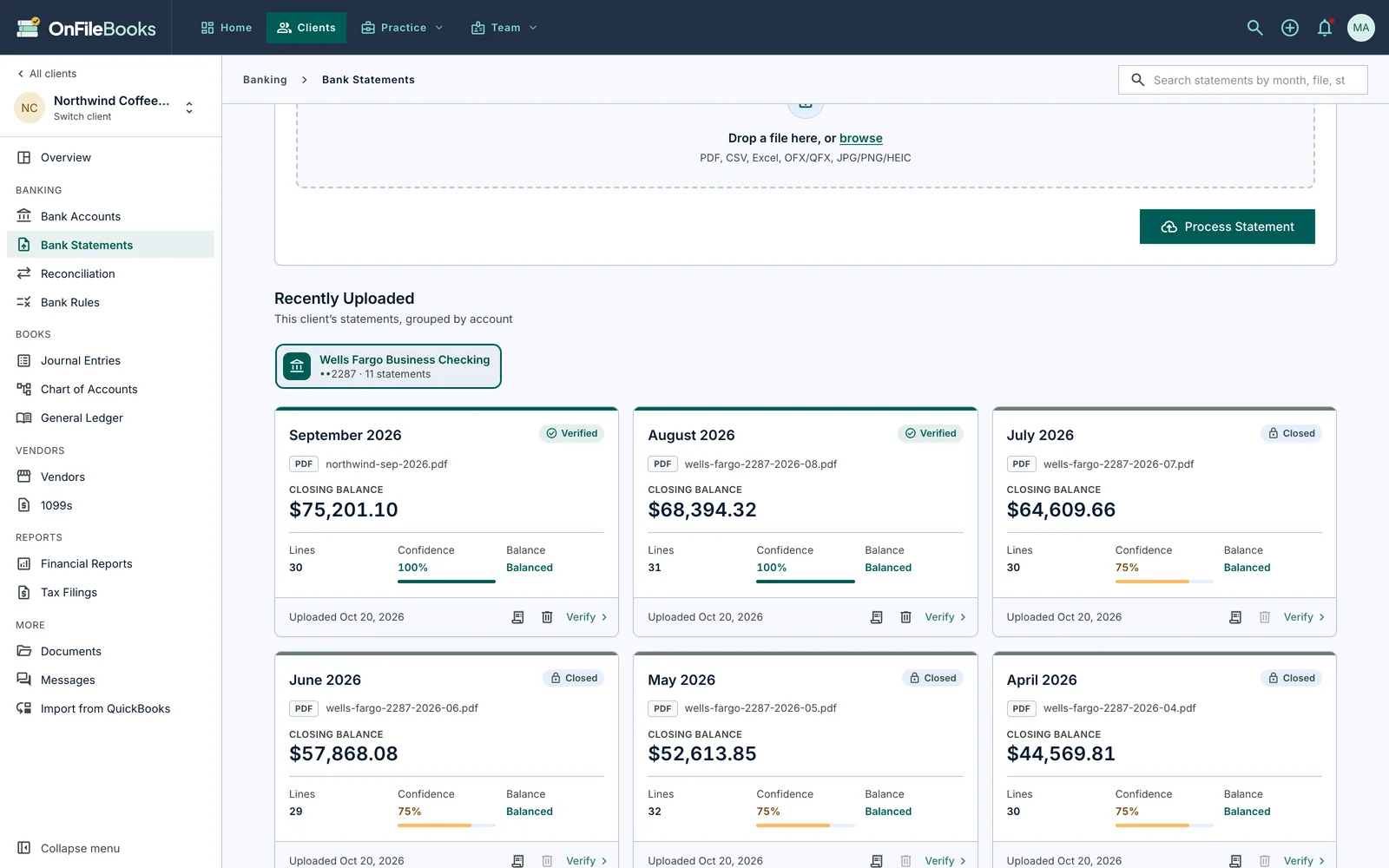
Statements from any bank
Upload a month-end statement and OnFileBooks reads every transaction, then checks the total against the printed closing balance before anything reaches the books.
- PDF, CSV, Excel or OFX/QFX, uploaded in any order
- Every month proven: opening balance plus transactions equals the printed closing, picking up where last month left off
- Missing months and statements that don't tie, flagged for every client
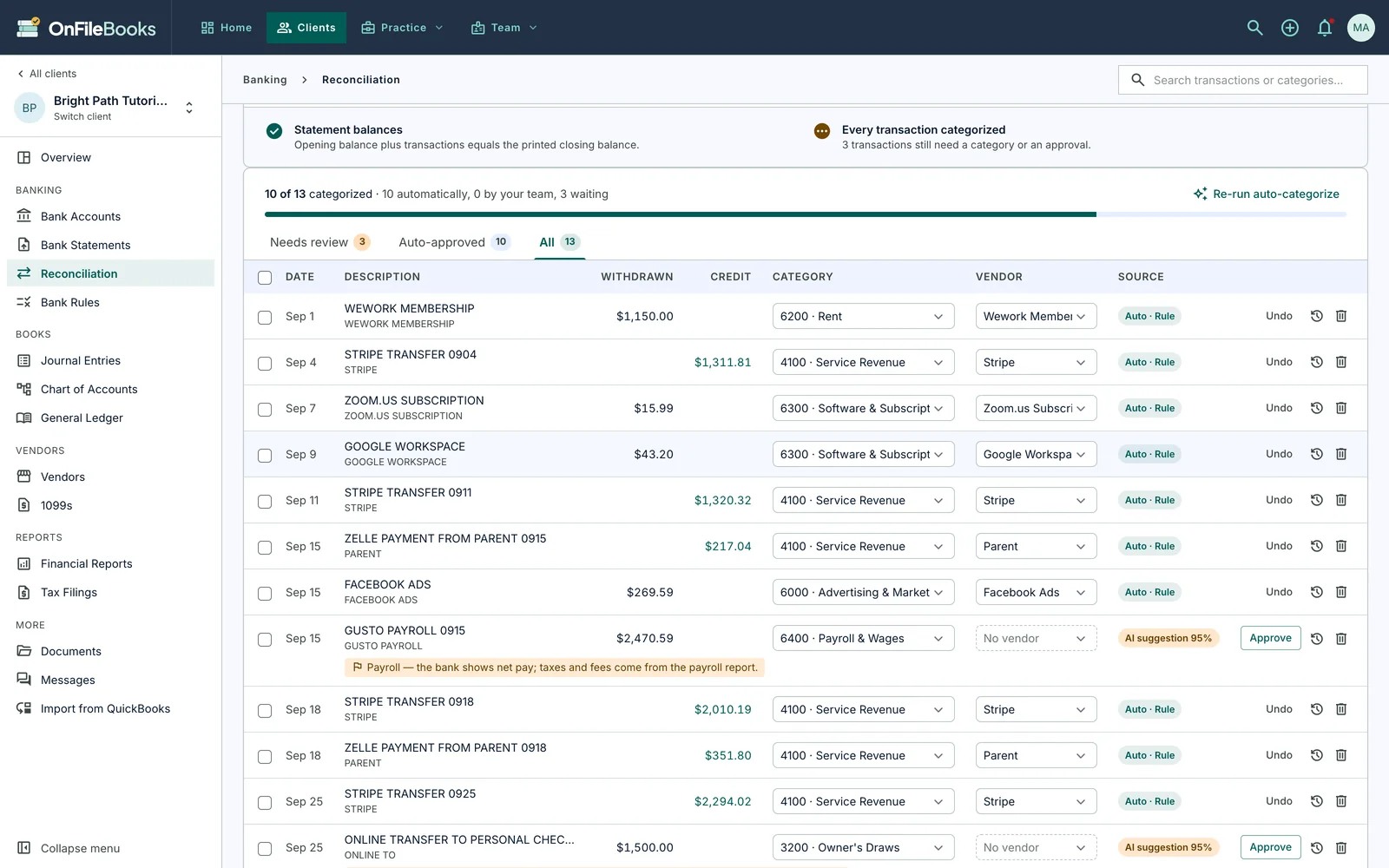
Month-end reconciliation
Each transaction gets a category and a clean vendor name: from your bank rules, from how the client's own books posted it before, or from AI. Your team reviews what's left, approves in bulk, and finalizes the month, which locks it.
- Learns from each client's books, QuickBooks history included: a payee posted the same way before is approved automatically
- AI names the vendor and suggests a category; anything it isn't sure of, and every card payment, loan or tax payment, waits for your team with a note saying why
- Delete a duplicate or undo an approval in one click; statement and books must balance before a month can close
- Every automatic decision is labeled and logged: you can see which bank rule, past posting or AI suggestion made it
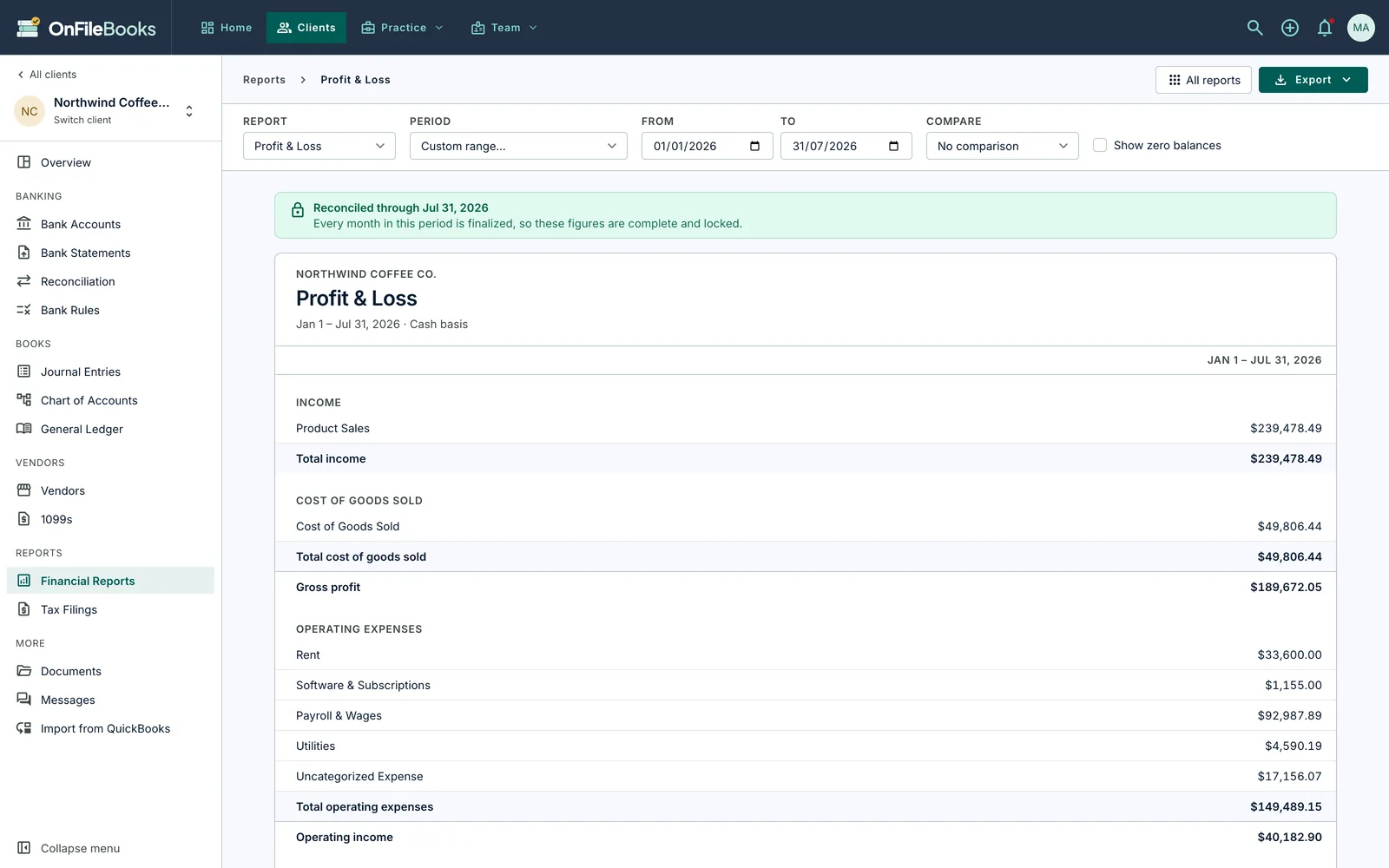
Financial reports, ready for the return
Profit & Loss, Balance Sheet, Cash Flow, Trial Balance, General Ledger, Transaction Detail, Expenses by Vendor and more, with every figure traceable to the bank line behind it.
- Compare with the prior period or year
- Client-ready PDF with your firm's logo
- Excel and CSV exports with real numbers
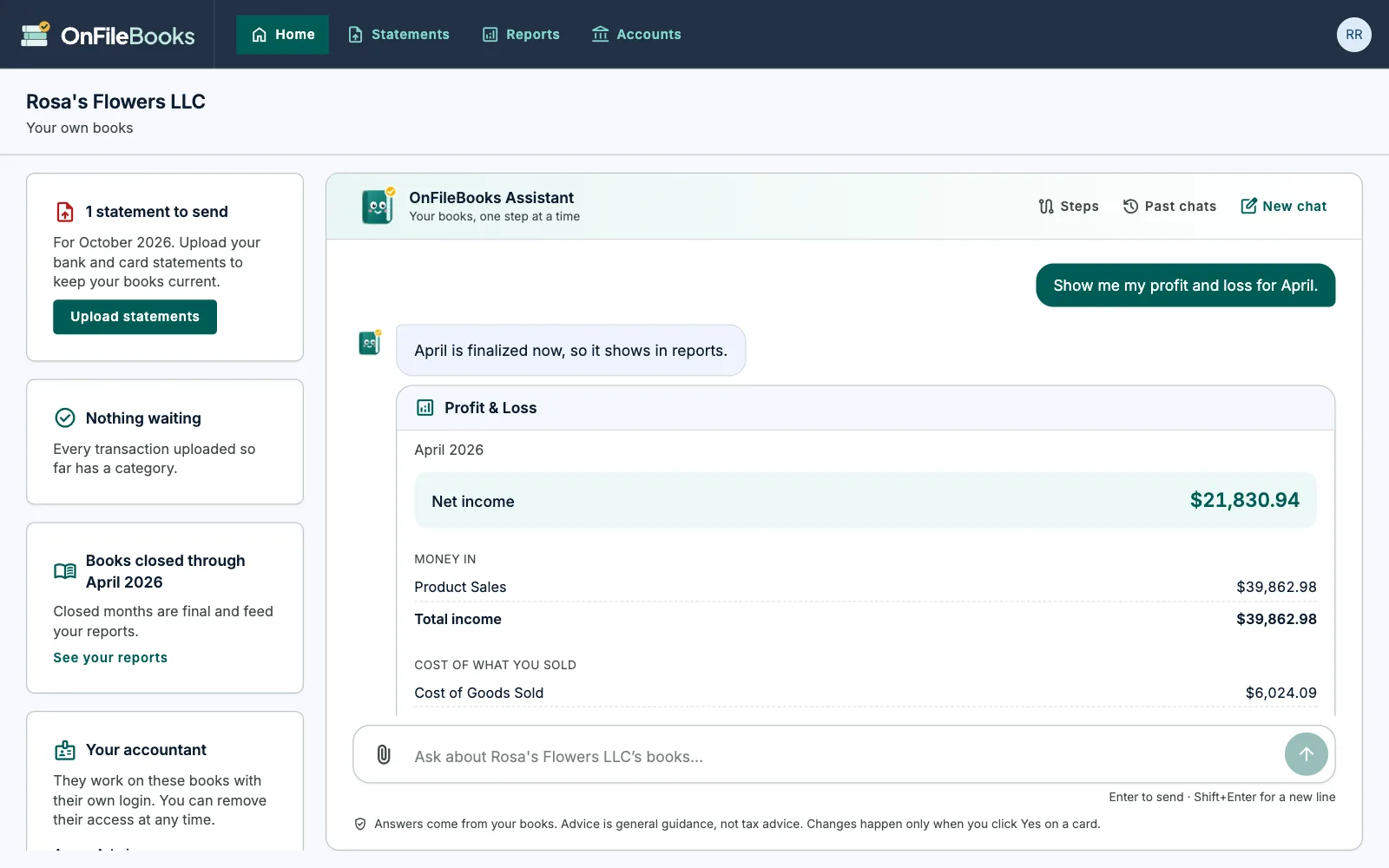
Ask your books in plain words
For business owners keeping their own books. The OnFileBooks Assistant answers from the business's own books, and walks through each month step by step, right in the chat.
- "How did April go?" "What were my biggest expenses?" Answers from the books, with the report shown in the chat
- Upload a statement, review transactions, close the month and see the reports without leaving the conversation
- Nothing changes until the owner clicks Yes on a card
- Their accountant can work on the same books with their own login
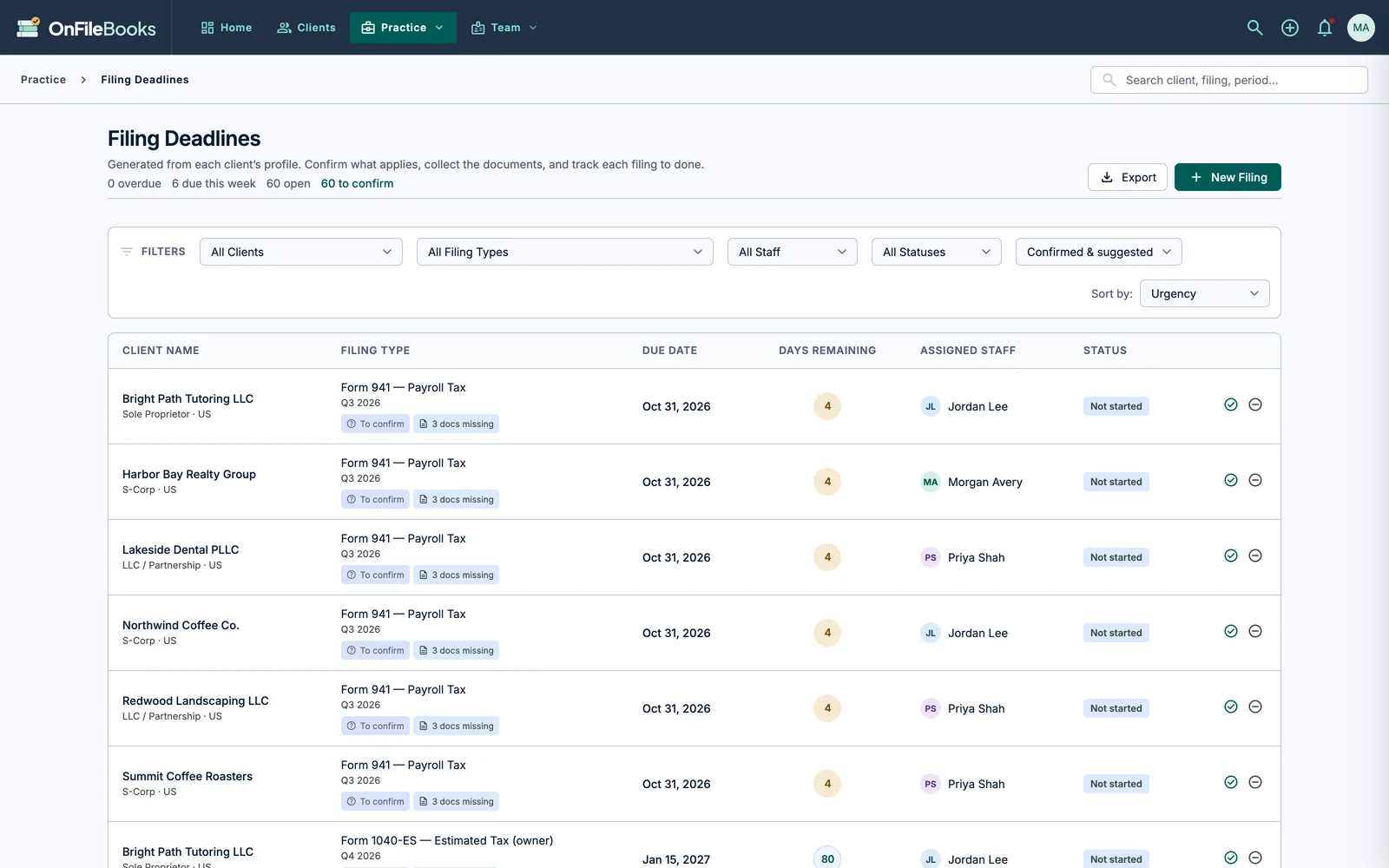
Filing deadlines that set themselves up
Deadlines are generated from each client's profile, with document checklists and a countdown, plus a 1099 center that flags vendors over the reporting threshold.
- Federal returns, payroll, estimated tax, 1099 and sales tax deadlines
- Document checklists and assigned staff for each filing
- 1099 review from the vendors paid during the year
Month-end, step by step
The same six steps for every client, every month.
- UploadThe statement for each account
- Balance checkAgainst the printed balances and last month
- Auto-categorizeRules, the client's books, then AI
- ReviewApprove, fix, save rules
- FinalizeLock the month
- ReportStatements, schedules, exports
Why OnFileBooks
Built around how a firm actually closes a client's books.
Every client in one place
Each client's statements, books, reports and deadlines under one login, with its own menu. Switch clients in a click.
Every number traceable
Click any figure in a report to see the transactions behind it, down to the original bank line.
Know what's missing
One grid of every client and month shows the statements still missing and the months that don't tie, so catch-up work starts with a list, not a hunt.
Deadlines from profiles
Filing deadlines come from each client's entity type and settings, not from a spreadsheet someone keeps.
Switch without starting over
Bring a client's books over from QuickBooks Online: every transaction, the chart of accounts, bank and card accounts, vendors and customers.
Export from QuickBooks Online
In QuickBooks Online, go to Settings → Tools → Export data and choose All dates. You get one ZIP file.
Upload and review
See every account and where it lands, and a check that the import matches QuickBooks' Trial Balance to the cent. Nothing is written until you confirm.
Pick up where you left off
History is imported and locked. Upload the next month's statements and carry on, and undo the import if anything looks off.
Works from QuickBooks Online's own Export data file, so no connection to the client's QuickBooks account is needed. The uploaded file isn't stored.
Built to hold client financial data
Your clients trust you with their numbers. Here is how OnFileBooks protects them.
- Tax IDs encrypted at rest with AES-256, keys protected by AWS Key Management Service
- All traffic over HTTPS; hosted on Amazon Web Services in the United States
- Each firm's data isolated from every other firm's at the database level
- AI suggestions see a transaction's bank description, amount and date, plus the client's name, chart of accounts, vendors and past categorizations. Never tax IDs or contact details
- Two-factor sign-in with an authenticator app, available to everyone on your team
- Three roles and ten permission switches set by your firm's Admin. Junior Associates see only the clients they're assigned to, and every request is checked on the server
- Every change is recorded in an Audit Trail: who made it, what it was before and after, and when. History can't be edited or deleted in OnFileBooks
Founding price for the first 10 firms
Try every feature on one real client, free, with your whole team. If it earns its place, the first 10 firms that stay get a founding price.
$0
No credit card · Your whole team
- Statements, reconciliation and bank rules
- All financial reports, with PDF, CSV and Excel export
- Filing deadlines and the 1099 center
- Roles, permissions and client assignments
Founding price
For the first 10 firms that stay
- Offered once OnFileBooks has earned its place with your firm
- Agreed with you in writing before you're charged anything
- For accounting and bookkeeping firms in the United States
Questions
Can't find your answer? Write to support@onfilebooks.com.
For accounting firms
Which banks and file types work?
Any US bank or card issuer. Upload the month-end statement as a PDF, CSV, Excel or OFX/QFX file. OnFileBooks reads the transactions and checks them against the statement's printed balances. There's no bank-feed connection to set up or keep working.
A client sent a year of statements at once, with gaps. What happens?
Upload them together, in any order. Each month is checked against its printed balances, and against the month before it as soon as that month is in. The Statement Coverage screen then shows, for every client, which months are missing and which don't tie. Months before the books start, or after an account was closed, aren't counted as missing.
Is my clients' data safe?
Data is encrypted in transit, tax IDs are encrypted at rest with keys held in AWS Key Management Service, and each firm's data is kept separate from every other firm's at the database level. Your firm's Admin decides what each staff role can see and do.
What does the AI see?
To suggest a category and vendor, the AI sees each transaction's bank description, amount and date, plus the client's name and business type, its chart of accounts and vendors, and how similar transactions were categorized before. It never sees tax IDs or contact details. Every suggestion is labeled with its source, and anything it isn't sure of waits for your team.
Does OnFileBooks replace QuickBooks?
It covers the month-end bookkeeping a firm does for its clients: statements, categorization, reconciliation, journal entries, financial statements and filing deadlines. You can bring a client's history over from QuickBooks Online in one sitting, checked against QuickBooks' Trial Balance, or keep using it alongside your existing tools: reports export to PDF, CSV and Excel.
Who can see what?
Three roles: Admin, Senior CPA and Junior Associate. Ten permission switches control things like editing transactions, finalizing a month, posting journal entries and viewing the Audit Trail. Junior Associates only see the clients they're assigned to.
For business owners
Do I need to connect my bank?
No. Download your month-end statements from your bank's website and upload them as PDF, CSV, Excel or OFX files. Each month is checked against the statement's own balances, and there's no bank connection to set up or keep working.
What can I ask the OnFileBooks Assistant?
Questions about your own numbers, in plain words: how a month went, what you spent on supplies, your biggest expenses, what's left to do on your books. It answers from your books, shows reports right in the chat, and walks you through uploading a statement, reviewing transactions and closing a month.
Can it change my books?
Only when you say so. It can suggest approving transactions, moving them to another category, a bank rule or closing a month. Each suggestion appears as a card, and nothing changes until you click Yes on it.
What does the OnFileBooks Assistant see?
The Assistant is for business owners keeping their own books. To answer, it reads that business's own books: its name, business type and industry, chart of accounts, transactions, reports, vendors and filing deadlines. It never sees tax IDs or contact details, and it can't send email. It changes nothing unless the owner clicks Yes on a card, and its answers are general guidance, not tax advice.
Can my accountant work on my books?
Yes. Invite them and they work on the same books with their own login, and you can remove their access at any time. If your accountant already uses OnFileBooks, they can invite you instead.
Is it tax advice?
No. Answers are general guidance from your books, not tax advice. For filings and tax decisions, work with your accountant.
Request early access
Tell us about your firm or business in the US. It takes a minute.
What happens next
- We reply within one business dayWe review every request ourselves.
- You set up your accountFrom the link in our email, with two-factor sign-in if you want it.
- Start on real booksFor firms, your first client is free, with your whole team.
Questions first? support@onfilebooks.com
Run a business? Keep your own books
Upload your bank statements and ask the OnFileBooks Assistant about your numbers in plain words. Bring your accountant in whenever you need one.
- Upload your statementsAny US bank or card, as PDF, CSV, Excel or OFX. Each month is checked against the statement's own balances.
- Ask in plain words"How did August go?" "What did I spend on supplies?" Answers come from your books, and nothing changes until you click Yes.
- Invite your accountantThey work on the same books with their own login, and you can remove their access at any time.